






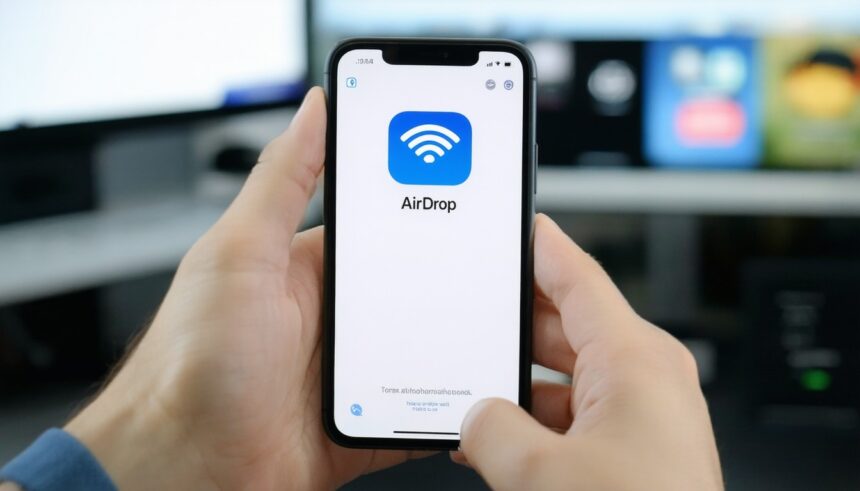
Apple’s AirDrop has become a staple feature for anyone navigating the Apple ecosystem. This wireless file-sharing technology allows quick transfer of photos, documents, links, and even entire folders between Macs, iPhones, iPads, and iPods. AirDrop employs both Bluetooth and Wi-Fi to create a secure, efficient peer-to-peer network, eliminating the need for cables, emails, or third-party apps.
In today’s fast-paced digital environment, efficient sharing is more crucial than ever. Whether you’re in a meeting needing to share last-minute presentations or at a family gathering swapping photos, AirDrop offers an instant, private method to get the job done. According to market analyses, Apple’s closed ecosystem approach—of which AirDrop is an anchor—fuels significant loyalty and seamless cross-device workflows.
Beyond its convenience, the security aspects of AirDrop are notable. Files are encrypted during transit and only visible to intended recipients if set appropriately. For professionals and casual users alike, understanding how to turn AirDrop on is fundamental to unlocking these productivity and privacy advantages.
How to Turn AirDrop On: Step-by-Step Instructions for Every Device
Enabling AirDrop is straightforward, but the exact steps differ depending on your Apple device. Below are comprehensive instructions to ensure you can activate AirDrop and start sharing instantly.
Turning On AirDrop on iPhone and iPad
AirDrop is integrated into iOS and iPadOS, making it accessible with just a few taps.
Using the Control Center
- Open Control Center:
- On iPhone X or later (and most iPads): Swipe down from the top-right corner.
- On iPhone 8 or earlier: Swipe up from the bottom edge.
- Locate the Connectivity Module: Press and hold the panel with Airplane Mode, Cellular, Wi-Fi, and Bluetooth icons.
- Tap AirDrop: Choose one of three options:
- Receiving Off: Disables AirDrop.
- Contacts Only: Restricts sharing to your contacts.
- Everyone for 10 Minutes: Allows anyone nearby to share with you, resetting after ten minutes for privacy.
"Setting AirDrop to 'Everyone for 10 Minutes' strikes a good balance between convenience and privacy, especially in crowded areas where accidental sharing from strangers is a concern," explains Nicole Nguyen, technology journalist at The Wall Street Journal.
Through the Settings App
If you prefer not to use Control Center, navigate to Settings > General > AirDrop to select your preferred availability.
Enabling AirDrop on a Mac
On macOS devices, AirDrop sits as a menu in Finder and the System Preferences.
Using Finder
- Open Finder.
- Select AirDrop from the left sidebar.
- Enable Bluetooth and Wi-Fi if prompted.
- Set Discovery Preferences: At the bottom, set ‘Allow me to be discovered by’ to No One, Contacts Only, or Everyone.
Via System Settings
Go to Apple menu > System Settings > General > AirDrop & Handoff. Make sure AirDrop is turned on and configure your discoverability.
Compatibility Requirements
AirDrop requires:
- iPhones and iPads running iOS 7 or later.
- Macs from 2012 or newer (excluding 2012 Mac Pro), running macOS Yosemite or later.
- Wi-Fi and Bluetooth activated.
For devices with older hardware or operating systems outside these bounds, AirDrop will not function.
Common AirDrop Issues and How to Resolve Them
Despite AirDrop's ease of use, users occasionally encounter problems—a reminder that even the best-designed features can face real-world hiccups.
Devices Not Discovering Each Other
This is frequently caused by:
- Devices being too far apart (AirDrop works within Bluetooth and Wi-Fi range).
- AirDrop settings set to “Receiving Off.”
- One of the devices is locked or asleep.
Solution: Move devices closer, ensure they are unlocked, and check AirDrop availability settings.
Connectivity and Software Glitches
AirDrop relies on both Bluetooth and Wi-Fi, so toggling these off and on can reset connections. Restarting devices also often resolves intermittent issues. Software updates frequently include AirDrop performance improvements; keeping devices up to date is essential.
Firewall and Security Settings
On Macs, strict firewall settings can sometimes block AirDrop. Make sure “Block all incoming connections” isn’t checked in System Settings > Network > Firewall > Options.
Security and Privacy Considerations with AirDrop
As with many digital sharing tools, security is a common user concern. AirDrop uses dynamically generated Apple IDs, encrypts files in flight, and leverages direct connections rather than internet routing.
Preventing Unwanted Contact
In shared environments like offices or schools, setting AirDrop to “Contacts Only” is best practice. Apple has addressed security concerns in recent updates by adding temporary sharing (the “10 Minutes” rule), reducing the risk of spam or unwanted content.
Real-World Scenarios
Workplaces that manage sensitive information, such as healthcare or legal sectors, prioritize configuration and proper staff training around AirDrop to avoid accidental leaks. For parents, teaching children how to set AirDrop controls is key to ensuring only known contacts can send media to their devices.
When to Use AirDrop—and When to Consider Alternatives
AirDrop excels in local, immediate transfers between Apple devices. But it’s not always the right tool.
Best Use Cases
- Sharing Photos and Videos: Instantly send media after an event or trip.
- Transferring Documents to Mac: Move PDFs or presentations without email or cloud uploads.
- Collaborative Work in Person: Quickly exchange files in meetings, classrooms, or creative studios.
Alternatives for Cross-Platform or Large Transfers
For mixed-device environments, cloud storage (like iCloud Drive, Google Drive, or Dropbox) may provide better compatibility. For extremely large or numerous files, cables or managed enterprise sharing solutions might be optimal.
AirDrop Tips and Best Practices for Smooth File Sharing
Optimizing the AirDrop experience can save time and avoid frustration.
- Rename Devices: Assign clear names in Settings (iOS) or System Settings (macOS) to avoid confusion if several Apple devices are present.
- Update Devices Regularly: Stay on the latest iOS/iPadOS/macOS version for the smoothest compatibility.
- Control Discovery Carefully: Set AirDrop access according to context—more restrictive for privacy, more open if briefly needed.
- Use at the Right Distance: Ensure devices are within a few feet and have no major obstructions.
Key Takeaways
Enabling AirDrop is a quick way to streamline sharing across the Apple ecosystem, but optimal use requires a bit of setup and ongoing awareness of privacy controls. Staying updated on both device software and best practices ensures AirDrop remains a secure, efficient tool—at home, work, or anywhere Apple devices connect.
FAQs
How do I turn AirDrop on from the lock screen?
AirDrop cannot be enabled directly from the lock screen; you must unlock your device first, then access it through Control Center or Settings.
Why don’t I see the AirDrop option on my device?
This may be due to compatibility limits; devices must meet minimum hardware and software requirements. Also, ensure both Wi-Fi and Bluetooth are switched on.
Is AirDrop secure for confidential files?
AirDrop uses encryption and device authentication to protect transfers, making it secure for most private or work-related documents when used with proper settings.
Can I AirDrop between iPhone and Mac?
Yes, as long as both devices have AirDrop enabled, meet compatibility requirements, and are within close proximity with Bluetooth and Wi-Fi active.
How do I change my AirDrop name?
On iOS, change your device name in Settings > General > About. On Mac, go to System Settings > General > About, then edit the device name.
What should I do if AirDrop isn’t working?
Restart both devices, toggle Bluetooth and Wi-Fi off and on, and check that AirDrop is set to receive files. Updating to the latest software often resolves persistent issues.


Credentialed writer with extensive experience in researched-based content and editorial oversight. Known for meticulous fact-checking and citing authoritative sources. Maintains high ethical standards and editorial transparency in all published work.
